Monday, October 31, 2011

Review - Dell Inspiron 14z

Quick review: Dell Inspirion N411z "14z" laptop


The family needed a new laptop and after some pondering, we decided on the Dell Inspiron N411z, which is a fairly traditional laptop that is a little thinner and lighter than most. We were after a laptop larger than our Netbook and smaller than a 17" machine. 

Initial reactions:

Opening the box, we both said "wow, look at that."  This is an attractive machine that feels well-built and solid.  The top-surfaces are brushed aluminum and unlike other recent Dell laptops, this does not feel plastic-y.  The outside edges are sculpted and the screen is thin.

We like the computer and have found no significant problems.   


We ordered a standard, low-end model, with an i3 CPU, 500GB Disk and 4G RAM, all fairly pedestrian.  Do not confuse this computer with the high-end Dell XPS 14z.

It performs as expected and intended.  Windows Experience Index shows the following.  These are good performance specs, but all i3 machines should behave similarly.  In today's market, there is little performance variation from one brand to the next:


Detailed Reactions:

Your first reaction is the metal finish.  Compared to other less-expensive Dell computers, this machine feels like a real computer and not a disposable plastic toy.  Case-in-point: Earlier this month, we bought a 17" Dell Inspiron and hated the shiny-plastic lid and palm area -- every fingerprint showed as a greasy smudge.  This computer is different.  The metal feels cool to the touch and fingerprints won't be as much of a problem.

The 14z comes in two colors -- A dark, Espresso Brown (standard) and a deep burgundy Red ($20), both illustrated below.  Colors are deep and rich, along with a slight metal texture.  It would have been nice to see a brushed aluminum and white, harkening back to their popular M1530 laptops from 3 years ago.

The second thing you notice is the screen.  The LED (not LCD) is remarkably thin and the hinge is offset about 20mm from the back edge, probably to help protect it.  We liked the design. Colors are vibrant, with good viewing angles.

With the lid closed, the computer is about 10mm (3/8") thinner than most other laptops.  However, the 'thin-ness' is no where near as surprising as a Mac Air-Book or a Samsung Series 9.  But unlike an ultra-thin, this has all the speed, memory, external connections and a DVD that you would want. But still, it never hurts to be thin.

Sitting on a desk, the total thickness is taller than advertized (with the 6-Cell battery) because the curve of the battery-pack extends downward, acting as footpad and providing air circulation for the bottom panel.  In practice, you can ignore this, appreciating the thinness of the machine in other places.

Keyboard and TrackPad

The keyboard is the new style (chicklet) keyboard that all new laptops seem to have.  The keys have a good, solid feel, with good vertical travel but I wish they had more of a sculpted, bowl-curve on the top surface.  There is a top row of Fkeys, which have been missing on other laptops I have seen.

Click for a larger view; click "X" to return.
The color is more of a burgandy than red.  I need to learn how to white-balance my camera...


We paid an extra $30 for the backlit keyboard.  The outside edge of each key, as well as the printed letters, are illuminated.  In a darkened room, this is a nice feature.  It turns off after a few minutes of inactivity and I doubt it draws very much power.  The backlighting is more subtle than the photo indicates.


The trackpad is molded into the palm rest and is large, but not too large, and the Dell-supplied drivers are simple and functional. Although I've not used it yet, the trackpad supports multiple-finger gestures.  For example, dragging two fingers down acts as a scroll.  You can also scroll using the Right and Bottom edges of the pad.

The trackpad has one problem that other reviewers have written about: The buttons are stiff.  I agree.  It will not improve with age.  However, for normal clicking, you don't need the buttons; just tap on the pad.   

Side Ports

The left and right sides have various USB, and mini-display ports.  The back has an RJ45 and the power-jack.  Except for the power-jack, all ports are covered with a pliable molded plastic door that even if twisted, will not break.  Because of the inward curve of the case, Dell had to do something to cover the ports (the curve makes them indented by several millimeters).  The doors were a solution that gives the machine a smoother, more polished look.  But they have a problem in the 'Form follows function' arena.


The doors are inconvenient to open and you will need fingernails or a small blade. Small plastic tabs latch the doors shut and will undoubtedly wear after repeated use.  Unfortunately, the headphone jack is also behind one a door and you will have to open it each time headphones are used.  


Other side, showing door closed.  This is the Espresso Brown color.  Better than boring black.

External mice with Nano receivers will not be happy because the doors will not close.  I would suppose if you were industrious, you could cut a hole in the door.  Don't you wish all laptops had built-in nano receivers?

In any case, if you are always using external ports, the doors may be more trouble than they are worth.  When that day comes, I will be tempted to cut them off.  In Dell's defense, the doors look nice. 

Other Hardware Notes:

Unlike the higher-end laptops, this machine features a standard laptop DVD drive with a tray (not a slot-load).  I had minor difficulties closing the door, where the trim appeared to catch on the side of the case.  This is not a major concern, but I would use care when closing the tray. The CD/DVD drive is user-replaceable via a screw under the bottom panel.


The hard drive is not user-replaceable and requires an entire laptop dis-assembly to get to the component. 

The PowerBrick is the same used by other Dell laptops and appears to be interchangeable.  All of my recent Dell powerbricks work on this laptop.

The power-plug sticks directly out the back of the machine and because of this, it is susceptible to damage if the laptop is tipped backwards or if someone trips over the cable.  This is a design weakness in most laptops, including this machine.  The motherboard's power-jack is easily damaged and I can prove this with an older Dell laptop -- and yet, they continue to design them this way.  However, there is one bright spot:  The mother-board AC adapter plug is replaceable, without soldering -- but this is not a user-replaceable part.  See the Technical manual at the end of this article for details.


Technical Details, from Dell's site:

i3 or optional i5 Processor
4GB memory, standard, upgradeable to 8
14" High Definition LED 1366x768 with "True Life"; no other screen options
SATA harddrives, starting at 500GB

10/100 RJ45 Wired Network Connection
Wireless: Intel® Centrino® Wireless-N + WiMAX 6150 (1x2 bgn + WiMAX)
(Supports Wireless Mini Cards, should a replacement be needed)
Bluetooth: Intel® Centrino® Wireless-N 1030 (1x2 bgn + Bluetooth)

SD, MS, MMC CardSlot
2 USB 3.0 slots
1 USB 2.0 Powered slot
Combination Headphone/Microphone Jack (unsure how the combo works)
SRS Sound, 2 speakers, underneath the chassis, well placed
HDMI v1.4
Mini Display Port (no VGA or Digital); adapter cable not included
1Mpx WebCam

The battery is a user-replaceable 6-cell Li-Ion 65WHr (std).  You can also buy an optional 4-cell battery -- which is what allows them to advertise the machine is one inch thick. 


Pre-Installed Software - Crapware

Over the years, Dell has ebbed and flowed with pre-installed software, affectionately called "crapware" (trial software, limited use software).  This machine leans a little more on the crapware side of the fence but admittedly, there is a fine-line between one person's crap and another's handy feature.

I spent about 2 hours removing software and cleaning up the machine to my preferences.  Here is a summary of what I removed, with more details below.  Granted, some were nothing more than a PDF-documentation file and others could be construed as useful.  Since I have high standards and low tolerance for advertisements, I found most of the installed software expendable.

For example, an icon-link to ebay was provided.  This clearly has nothing to do with a laptop and Dell must have gotten a kickback for installing it so prominently on the desktop.  Although this was not an egregious sin, it was a disservice to their customers.  

Removed Software:

Software that was clearly crapware is marked in my list with an an asterisk (*).
If it were more benign or had some usefulness, along with advertising, I marked as ( ).
Unmarked software could be taken one way or another.

Mcafee Security Center (*)
Accidental Service Agreement (*)
Banctec service Agreement (*)
BLIO - K-NFB eReader (*)
Complete Care Business Service Agreement (*)
Consumer In-Home Service Agreement (*)
Dell Home Systems Service Agreement (*)

Ebay (*)Microsoft Office 2010, Office Starter with advertising (*)

Microsoft PlayReady PC Runtime x86  (DRM licensing - no benefit to you) (*)
Premium Service Agreement (*)
QualxServ Service Agreement (*)
Sync-up by Nero $25.00 (*)
Skype and Skype Toolbar (*)
TrustedID (ID Protection - $40 per year) (*)
WildTangent Games (*)
Zinio eReader (*)

Acrobat Air ( )
Bing bar ( )

Cozi Family Calendar, free ( )
Microsoft SQL Server 2005 Compact Edition ( )
Windows Live Essentials ( )
Microsoft Silverlight ( )
Dell Stage - Buttonbar ( )
Dell Music Stage ( )
Dell Video Stage  ( )

Dell Digital Delivery (optional)

Dell DataSafe Local Backup (perhaps.  2G free for 1 year)
Dell DataSafe Online (optional)
Dell 'Stage' (includes AccuWether desktop widget)

Service Agreement Clutter
Several of the install programs were nothing more than a license/pdf for various service contracts, which you likely don't have.  These were all documented if you bought the service and they certainly these do not need to occupy space in the control panel.

McAfee
Most longtime Keyliner readers know that I dislike McAfee and Symantec's virus suites, thinking they are almost a virus themselves.  I always de-install, and install Microsoft's MSE.  See this Keyliner article.  If you wanted, you could keep the McAfee product for a year, but even at that price, I'm not sure it is worth it. Some day I'll give them a chance again.

Microsoft Office 2010 Advertising
Microsoft Office 2010 is the free, advertising-supported version.  If you need Office, buy it, or install a competing product, such as Corel's Office Suite.  I would never use the version installed on the disk. If you are going to spend this much money on an office-suite, get the installation media.

Microsoft Live
If you are not using Microsoft Live, uninstall it and save CPU cycles and disk space.

Microsoft PlayReady DRM
Microsoft PlayReady is a Digital Rights Management program, which I recommend un-installing.  This software does nothing to benefit you. 

DataSafe
Dell's DataSafe is needed one-time to spin an emergency recovery disk, but then it could be un-installed.  The remaining features, such as 1 year of free online backup (2G) is really an advertisement for the service.  Some day, perhaps, Dell will offer the backup service for free, as a benefit to owning their machines.

Dell Digital Delivery
Dell Digital Delivery is needed if you bought downloadable software from Dell.  If you did not buy software, un-install.  If you later decide you needed it, you can re-download from Dell's site. 

Zenio and Blio eReaders
Of interest, the computer came with two different (competing!) eReaders, neither of which I have heard of.  Both have links to their sites where books and magazines are for sale.  The readers are different than the Nook or Kindle and they are supposed to give a magazine's glossy-look and feel, with all the layout.  But, in the end, these are really advertisements and again, Dell must have gotten a kickback.  Remove them.

WildTangent Games
Similarly, WildTangent Games, and Sync-Up are advertisements and should be deleted.  I keep wishing the WildTangent games were just the installed games; some of them looked fun to play, but it is not worth the hassle of trying to figure out when money was involved.  There is also ebay and Skype.  If you need these services, visit those sites and install what you need at that time. 

Dell Stage
Finally, there is a slick-looking toolbar called Dell Stage.  I am mixed about this.  On one hand, it added flair to the desktop.  But I had troubles configuring and extending it to other things.  Other users on the web have similarly mixed views, with many really liking the program and others not.  In the end, I thought it pointed to commercial sites and wasn't as refined as it could have been.  Perhaps this warrants a closer look.  I hope the software is in the customer's interest and not another commercial venture, but I couldn't tell. Since I had doubts, I uninstalled it.

Once the software was removed, I streamlined the start menu, which makes the machine a joy to use.  See this Keyliner article: Streamlining Start Menus.  And this article on Cleaning Startup Programs.  These steps should be done on all computers.

Final Conclusions:

This is a full-featured laptop that is a pleasure to hold and use with no significant problems.  As configured above, we spent $650 (2011.10.27) and the machine was delivered in 5 days, standard freight.

Compared to other brands, it might be about $50 more than it should have been (given the RAM and hard drive), but we liked the style, with the Red and backlit keyboard.  Because of previous Dell purchases and service, we stayed with the brand.


Related Articles:
Windows 7 Streamline Start Menus (Organizing the Start Menu)
Windows XP/Vista Streamline Start Menus
WordPerfect, a Quick Review
Dell XPS Slim Power 
Review: Dell Mini 10
N144z Technical and Service Manual It is nice Dell publishes this.

Saturday, October 22, 2011

Excel Parse First Name, Last Name

How To: Reliably Parse FirstName, LastNames in Excel using a User Defined Function (UDF Macro). A single cell may contain a person's full name, as in "John Q. Smith".  Use Excel to parse out the constituent parts: FirstName, LastName, MidName, and Suffix.  These are really smart parsing routines.

Parsing a person's name into sub-parts is difficult to do. There are issues when the person's first-name is an initial plus their second name, as in "J. Alan Smith" (they probably go by "J. Alan".   Other names, such as Last Names, may be composed of two words, as in "Alan Van Doran", "Bobby Mc Farland" or "Jill Saint John".  A standard parsing routine may confuse "Van", "Mc" and "St." as middle-names.

The macros referenced in this article see through these types of issues and can parse most (English) names into their constituent parts:

FirstName
LastName
MidName
Suffix (Jr., Sr., PH.D, III, MD, etc.)

Overview:

With the code referenced in this article, you can have your own Excel functions.  For example, you may be familiar with Excel's =Sum().  With Excel's macro language, you can write your own function, such as "=ReturnLastName()", essentially inventing your own keywords.

Even with no macro experience, you can take the code from this article, add it to your spreadsheet, and use these functions, without having to write a single line of code or debug any routines.  You should be able to download, apply and use these routines in about 5 minutes.

The Macros were written as Excel User Defined Functions (UDF), where you can create your own Excel keywords.  Once installed, the macros can be applied and used like any other Excel function.  Today, I used these very routines to parse a 200,000 row spreadsheet.

See this article for a tutorial on how to build and use User-Defined Excel Functions or you can follow these step-by-step instructions and use the code as-is.  


What it Handles:

These routines correctly interpret all manner of English (and likely other language) names, including those with:
  • First-letter initials, punctuated or not  (J. Smith, J Smith)
  • First-letter initials, with a second name assumed as first= ("J. Alan")
  • Two-letter firstnames (JP Morgan)
  • Two-letter first names plus mid-names (JP Alan Morgan)
  • Hyphenated first and last-names
  • Common English names, such as Van, Vander, Mc, Mac, Saint, Le, Le', De, etc.
  • Common Suffixes (Jr., Sr., "J. Smith III", PH.D, PHD, MD, M.D., DDS, etc)
  • Common Suffixes, punctuated with/without commas (J. Smith, Jr. returns "Smith")
  • Names with extra embedded / internal spaces
  • Three, four and five-word names (Mary-Anne Lynn Miller, etc.)
  • Single-word names ("Smith", "Cher", assumes LastName)
  • All names are returned in the upper/lower case, as typed.  A separate "Proper" routine may be written in the future.

Where this routine struggles:

There are some areas where even humans have a hard time interpreting.
  • Names such as "Mary Anne Smith", where "Mary Anne" is the first name.  Anne will be tracked as a middle-name.  Note that "Mary-Anne Smith" will parse correctly.
  • Similarly, "Kathy Smith Jones" will parse as a mid-name "Smith" and a last-name "Jones".  "Kathy Smith-Jones" will parse a last name as "Smith-Jones", as does "Kathy Q. Smith Jones".
  • If the source name has a special character (~ tilde), "Kathy Smith~Jones", the name will be correctly stored as last-name "Smith Jones" (with the tilde removed). 
  • Uncommon Suffixes, such as educational-degrees, are not detected and will be incorrectly treated as last-names.  However, the code is easy to modify with additional suffixes.
  • These routines do not deal with prefixes, such as Dr., Rev., etc.  Advise if needed.
Functions:

=ReturnSuffixName()
=ReturnFirstName()
=ReturnLastName()
=ReturnMidName()

Also referenced are utility functions, such as "=SuperTrim" and "=ReturnLastWord", which are found in the A800_UtilStrings.bas module, downloaded below.


Installation and Use

Source-code can be downloaded from the Keyliner FTP site  (the code is too ungainly to post in a blog).  You are welcome to use these routines in your personal or commercial projects.

1.  Download two files from this link:
(You do not need to register as a user or login in order to download.  Highlight the files, then click the 'Download' button on the top ribbon-bar)

Link:  Keyliner' FTP Site

Download two files; both are required:
A240_ParseNames.bas
A800_UtilStrings.bas


2. Save the downloaded files to any directory, such as

C:\Data\Source\CommonVB\A240_ParseNames.bas
C:\Data\Source\CommonVB\A800_UtilStrings.bas

(or any other directory of your choosing)

3. Launch Excel and Enable Excel Macros.

Microsoft considers all macros a security risk and this can be a nuisance.
Do the following to enable the macros.  This is a one-time step for all macros.
  • Launch Excel; click the Orb (formerly the File Menu); choose Excel Options
  • Click Trust Center, Trust Center Settings
  • Macro Settings
  • Enable All Macros
  • Older versions of Office have similar settings.

4.  Open the sheet where you need to parse Names or open a blank worksheet to test the routines.  In the Excel sheet, import the VB code using these standard Excel steps:

a.  Click the "orb", Excel Options 
b.  On the left, choose "Popular"
c.  Click [x] Show Developer tab in the ribbon and return to the sheet


5.  Start the VBA Macro Editor by pressing Alt-F11.
The VBA Macro Editor will open in a new window.


6. On the tree-diagram, illustrated below, select your sheet ("Book1"), then:
  • Other-Mouse-Click (Book1),
  • Choose "Import File"
  • Browse and select the previously-saved ".bas" module,
    e.g. C:\Data\Source\CommonVB\A240_ParseNames.bas
  • You will see the code appear under the "Modules" folder (not illustrated)
  • Repeat this step and import
    C:\Data\Source\CommonVB\A800_UtilString.bas  (the second macro file)

7. Close or minimize the Visual Basic editor by clicking the editor's "X".  This returns you to the sheet and the macros are ready to use. 

Note: All the macro editor did was "attach" the code.  You can optionally choose to view the programming code by using the editor. 

Also, the macros will save with the sheet, but only if you follow the Office 2007/2010 Save warning, documented near the end of this article.


Important Dependencies in a Sheet:


The A240_ParseNames macros has an inter-dependency, where the =ReturnMidName routine depends on the =ReturnFirstName and =ReturnLastName.  This was done for efficiency and saves those routines from re-parsing previously parsed fields.

Because of this, build your parsing fields in this recommended order, with these formulas (technically, fields can be in any order, but the MidFormula may end up pointing ahead):

1.  Parse the Suffix first, using
=ReturnSuffixName(celladdress)

2.  Parse the FirstName next, using
=ReturnFirstName(celladdress)

3.  Parse the LastName next, using
=ReturnLastName(celladdress)


4.  Parse the MidName last, using
=ReturnMidName(celladdress, firstname, lastname)
Note the inter-dependencies; this field uses two other fields as input

For example, with a name typed in cell B3 (John Q. Smith, Jr.), build the =ReturnSuffixName formula in cell C3.  Continue with the other formulas, finishing with the =ReturnMidName in cell F3, as illustrated:
Click illustration for a larger view; click right-X to return

Once the formulas are built, you can "fill-down" columns C, D, E, and F, to calculate other names in the list. Commonly, once parsed, you would copy all of the names and Paste them using "Paste Special, Values only" -- converting them from formulas to fixed text.

If you were inclined to look under the hood, you would see the ReturnMidName macro's signature line in this VBA code.  Note the three fields passed into the routine:

Click illustration for a larger view; click right-X return

This concludes the tutorial on how to use these parsing routines. 

Possible Macro Errors:
If you get a "#NAME?" when typing =ReturnLastName, the library was not linked in properly or was not linked to this particular sheet (the macros are only available to the sheets where they were copied).  Review the steps above.  If a routine, such as "SuperTrim" or "FindLastWordPos" fails, confirm you linked in the A800_UtilStrings library.


Excel 2007/2010 Save Warning:

When Excel 2007/2010 saves the sheet, it will save it as an ".XLSX" and will strip the macros out as it saves (Microsoft is doing this as a security precaution.)


When prompted: 'Do you want to save as a macro-safe) workbook', click "Yes"  or optionally, do a File-Save-As, and choose "Excel Macro-enabled Workbook (*.xlsm).

Be aware, if you modify the Macros and save the sheet, only this sheet will see the changes.  From the macro editor, re-highlight the A240 and A800 routines and "Export" them back to the 'C:\data\Source\CommonVB' routines where they were originally stored.  This way, the changes can be used in other spreadsheets.

Here are some normal and unusual names this routine can handle:

John Smith
John Q. Smith
John Q Smith, Jr.
John Q Smith,Jr  (No space after comma)
John Q. Martin Smith, III

Smith
J Smith
J. Smith
J. Alan Smith
J Alan Smith
J.P. Smith
JP Albion Smith
JP Albion Smith PHD
John Mac Neal (LastName = Mac Neal)
John Mc Neal (LastName = Mc Neal)
John O' Brian (LastName = O' Brian, O' Leary, etc.)
   John  Mc   Neal MD  (extra embedded spaces)

(various Le', De' and other such names, with/without punctuation)
John Van Nuys  (LastName = Van Nuys, also Vander, Von, etc.)
Mac Hetherington
Mary-Anne Jacob Smith MD
Tom Smith, M.D.
Mary Ann Nichole Smith
Mary Q Anne Nichole Smith Barney
Mac Von Nuys, Jr (lastName = Von Nuys)

Lori Vander Hoff (LastName = Vander Hoff)

Related articles:
Excel Macros to Parse City State ZipCodes
Excel Macros to return First Word, Last Word, Supertrim, Count Words
Writing Excel UDF functions
Excel VLookup - A complete Tutorial
Excel Coloring Alternate Rows

Friday, October 21, 2011

Excel Parse CityStateZip Functions

Excel How to:  Parse City-State-Zip fields with an Excel User-Defined functions (UDF). A single cell, such as "Boise, ID 83703" can be parsed into individual fields. A variety of city-state-zip formats, including Canadian, are supported.  These are really smart parsing routines. This article has been streamlined and re-published on this date, with newer versions of the Macro code.


Parsing city-state-zip fields is complicated because the data can be in a variety of different styles and formats. Consider these examples:

Boise ID 83703
Boise, ID 83703-1111
Boise, ID 83703 1111
Boise,ID 83703
Boise ID 837031111
Post Falls, ID 83703 (multiple-word city)
Post _ _ _Falls, ID _ _ _83703 (embedded, redundant spaces, punctuation)
Salt Lake City UT 12345
Vancouver BC V1B-101 (Canadian)
Vancouver Park BC V1B 101


The Method:
With the code referenced in this article, you can build your own Excel functions.  For example, you are probably familiar with the =Sum() function.  With Excel's macro language, you can write your own function, such as "=ReturnCityName()".

Even with no macro experience, can take the code from this article, add it to your spreadsheet, and use the functions, without having to write or debug the routines.  You should be able to download, apply, and use these routines in about 5 minutes.


Overview:

The macros were written as Excel UDF's (Excel User-defined functions), where you can create your own Excel keywords.  Once installed, the macros can be applied and used like any other function in Excel.  Today, I used these very routines to parse a 200,000 row spreadsheet.  All of this logic happens in under 500 lines of code.

Main Function Names
=ReturnCityName()
=ReturnState()
=ReturnZipCode() Returns entire zipcode, punctuated

=ReturnZipCode5()
=ReturnZipCode4()
=SuperTrim()  (Trims extra leading, trailing and internal spaces)
=ReturnLastWord()


In this illustration, note the single cell with a city-state-zip in cell A5. 
The formula in cell B5 demonstrates the "ReturnCityName".  Other cells show a parsed State and Zipcode.


The routines work by first identifying the zipcode, then backing up, looking for the StateCode. Anything before the State/Province Code is considered a City name. If a postalcode is not found, it looks for a state/province code. The code can return either the string-values or the numeric positions.


See this article for a tutorial on how to build and use User-Defined Excel Functions or you can follow these step-by-step instructions and use the code as-is. 


What it handles
These routines correctly process City-State-Zip (CSZ) strings with these general characteristics:
  • Any type of US or Canadian Postal Code
  • Including ZipCode-5 digits and Zip4
  • Zipcodes can be with or without punctuation
  • City-names can be one or more words
  • State-codes (ID, NY, BC, B.C., ONT), etc.
  • State Names (New York, North Dakota) are supported, if comma-delimited

What it does not handle
With multiple-word state names ('North Dakota', 'British Columbia'), you must have a comma after the city name.

Lincoln City, North Dakota 83700-1234

Single-word state-codes ('ND', 'BC', 'D.C.', 'Idaho', 'Missouri') are handled properly with or without a comma.

Canadian Postal Codes are a mystery to me and forgive me for not knowing them but I believe they are properly accounted for. The code can be punctuated with a hyphen or a space (K1A-1B2 or K01 1B2). The Province Name must follow the state-name rules described above (As an aside, the postal-code is identified by a numeric digit in the 2nd and 7th position, with a space or a hyphen in the middle. The last digit must be numeric in order to detect a US or Canadian postal code.


Installation and Use
Source-code can be downloaded from the Keyliner FTP site  (formerly, this article listed the code, but the code became too ungainly to post in a blog).  You are welcome to use this code in your personal or commercial projects.

1.  Download two files from this link:
(You do not need to register as a user to download.  Highlight the files, then click the 'Download' button on the top ribbon-bar)

Keyliner' FTP Site

Download two files; both are required:
A210_ParseCityStateZip.bas
A800_UtilStrings.bas


2. Save the downloaded files to any directory, such as

C:\Data\Source\CommonVB\A210_ParseCityStateZip.bas
C:\Data\Source\CommonVB\A800_UtilStrings.bas


3. Launch Excel and Enable Excel Macros:

Microsoft considers all macros a security risk and this can be a nuisance.
Do the following to enable the macros.  This is a one-time step for all macros.
  • Launch Excel; click the Orb (formerly the File Menu); choose Excel Options
  • Click Trust Center, Trust Center Settings
  • Macro Settings
  • Enable All Macros
  • Older versions of Office have similar settings.

4.  Open the sheet where you need to parse city-state-zip
or open a blank worksheet to test the routines.  In the Excel sheet, import the VB code using these standard Excel steps:

a.  Click the "orb", Excel Options 
b.  On the left, choose "Popular"
c.  Click [x] Show Developer tab in the ribbon and return to the sheet


5.  Start the VBA Macro Editor by pressing Alt-F11.
The VBA Macro Editor will open in a new window.


6. On the tree-diagram, illustrated below, select your sheet ("Book1"), then:
  • Other-Mouse-Click (Book1),
  • Choose "Import File"
  • Browse and select the previously-saved ".bas" module,
    e.g. C:\Data\Source\CommonVB\A210_ParseCityStateZip.bas
  • You will see the code appear under the "Modules" folder (not illustrated)
  • Repeat this step and import
    C:\Data\Source\CommonVB\A800_UtilString.bas  (the second macro file)

7. Close or minimize the Visual Basic editor by clicking the editor's "X".  This returns you to the sheet and the macros are ready to use. 

Note: All the macro editor did was "attach" the code.  You can optionally choose to view the programming code by using the editor. 

Also, the macros will save with the sheet, but only if you follow the Office 2007/2010 Save warning, documented near the end of this article.


Testing:

A. In Cell A1, type an example City-State-Zipcode for testing. Press Enter when done:

example:  Boise, ID 83703-1234


B.  In cell B1, type this formula:

=ReturnZipCode(A1)

Results: The Zipcode should return.

Try these other functions: 
"=ReturnState()"
"=ReturnCityName()"
"=ReturnZipCode5()"

Possible Errors:
If you get a "#NAME?" when typing =ReturnZipCode, the library was not linked in properly or was not linked to this particular sheet (the macros are only available to the sheets where they were copied).  Review the steps above.  If a routine, such as "SuperTrim" or "FindLastWordPos" fails, confirm you linked in the A800_UtilStrings library.


Excel 2007/2010 Save Warning:

When Excel 2007/2010 saves the sheet, it will save it as an ".XLSX" and will strip the macros out as it saves! (Microsoft is doing this as a security precaution.)


When prompted: 'Do you want to save as a macro-safe) workbook', click "Yes"  or optionally, do a File-Save-As, and choose "Excel Macro-enabled Workbook (*.xlsm).


Descriptions
This article does not explain how this code was developed; that has been left for your study. But the provided code should work well with any version of Microsoft Excel, from version 97 onward. This code has been tested with Office 2007. Converting the code to VB6 or VB.Net should be nearly transparent. All numeric position/counters are base-1, per VisualBasic's norm.

Functions within the A800_UtilStrings routine are of particular interest:
=SuperTrim()
Trims all duplicate interior, leading and trailing spaces. This function is potentially helpful in a wide variety of situations, above and beyond CSZ parsing.

=FindLastSpacePos()
Returns the position of the last space, base-1; returns a numeric value

=ReturnFirstWord()
=ReturnLastWord()
Returns the first and last word in a string; properly trimmed.

=FindStatePos()
Returns the State-code/State-name's numeric position in the string; base-1. Other functions return similar values:

=ReturnCityName()
=ReturnState()
=ReturnZipCode()
=ReturnZipCode4 ()

=GetCSZPositions

Returns 4 numeric values, showing the position of each of the CSZ's subparts. See the comments near the top of the code for a complete description.

Other functions, such as =FindState, return the numeric positions and are provided as a convenience.

Comments welcome.

Link
Related articles:
Excel Macros to Parse City State ZipCodes
Excel Macros to return First Word, Last Word, Supertrim, Count Words
Writing Excel UDF functions
Excel VLookup - A complete Tutorial
Excel Coloring Alternate Rows
Excel Importing Leading Zeroes

Thursday, October 20, 2011

Excel Code: VB ReturnFirst/Last and SuperTrim

Reference: These Excel/VB macros for ReturnFirstWord, ReturnLastWord and SuperTrim are very handy.  Download these routines, free of charge, without registration, from Keyliner's FTP site.  Details on how to use these functions can be found in other Keyliner articles.  This article was streamlined and re-published.

Contents:
=ReturnFirstWord
=ReturnLastWord

=FindLastSpacePosition (numeric result)
=SuperTrim; Trims multiple redundant leading, trailing *and* interior spaces

=CountWords

These Excel UDF Macros can be downloaded and attached to a speadsheet in a matter of minutes.  Once in place, they can be used in any Excel formula.  Other Keyliner routines, such as Excel CityStateZip Parse Functions use these modules.

Installation and Use


Source-code can be downloaded from the Keyliner FTP site  (formerly, this article listed the code, but the code became too ungainly to post in a blog).  You are welcome to use this code in your personal or commercial projects. If you become fabulously wealthy, remember me or at least give me credit for the routine.

1.  Download from link: Keyliner' FTP Site

(You do not need to register as a user to download.  Highlight the files, then click the 'Download' button on the top ribbon-bar)

Download:
A800_UtilStrings.bas

2. Save the downloaded files to any directory, such as:
C:\Data\Source\CommonVB\A800_UtilStrings.bas


3. Launch Excel and Enable Excel Macros.

Microsoft considers all macros a security risk and this can be a nuisance.
Do the following to enable the macros.
  • Launch Excel; click the Orb (formerly the File Menu); choose Excel Options
  • Click Trust Center, Trust Center Settings
  • Macro Settings
  • Enable All Macros
  • Older versions of Office have similar settings.

4.  Launch Excel to a blank sheet and import the VB code using these standard Excel steps:

Click the "orb", Excel Options. 

On the left, choose "Popular"
Click [x] Show Developer tab in the ribbon

5.  Press Alt-F11 (Starts the VBA / Macro Editor)

6. On the tree-diagram, illustrated below, select your sheet ("Book1"), then:
  • Other-Mouse-Click (Book1),
  • Choose "Import File"
  • Browse and select the previously-saved module, e.g. C:\Data\Source\CommonVB\A800_UtilStrings.bas
  • You will see the code appear under the "Modules" folder (not yet in the illustration below but will be when you complete these steps)
7. Close the Visual Basic editor and return the original sheet; clicking the big "X".


Testing:

A. In Cell A1, type an example string, with leading, trailing and extra internal spaces. Press Enter when done:

example: "  Now is    the time "


B.  In cell B1, type this formula:

=SuperTrim(A1)

C.  In cell B2, type this formula:

=ReturnLastWord(A1)

Related Keyliner Articles:
Excel UDF (User Defined Functions)

Excel VLookup - a complete tutorial
Excel Coloring Alternate Rows
Excel Parsing City-State-Zip
Excel Importing Text with Leading Zeroes
Using VBA to Send Email

Sunday, October 16, 2011

Excel - Macro Editor Removes Spaces

How To: The Excel 2007 Macro Editor is automatically removing spaces between words while typing code.

Problem: 
While typing a new function name or other text in the Excel Visual Basic Macro, the editor  is removing the spaces between words as you type (automatically, unexpectedly, auto removing, auto-correcting).  For example, you may be attempting to type a new function name:

Public Function MyFunction()
but the editor will correct the text as "PublicFunctionMyFunction()"


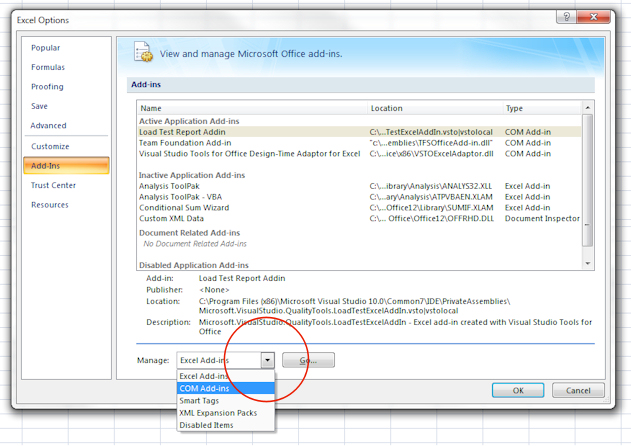
Note: You have also likely installed Microsoft Visual Studio 2010 sometime previously.  This product introduced a Load Test Report Add-in that is apparently causing this bug.  This article is current as-of Office 2007, SP2.  I suspect Office 2010 exhibits the same issue.


Solution:

1.   De-activate the Excel "Load Test Report Addin"  (add-in) using these steps:

a.  Click the Excel "orb" (File menu)
b.  Click the bottom-right button, "Excel Options"
c.  Click left-side "Add-Ins" menu
d.  In bottom, center pull-down, Choose "Manage" "COM Add-ins".  Click Go


2.  Uncheck [ ] "Load Test Report Addin"


3.  Press Alt-F11 to return to the Macro editor.  The problem should be resolved.

Making this change is permanent (for this workstation) and the change sticks for the current worksheet and all new and existing sheets.

Keywords:
VB VBA Editor auto-delete auto-deletes auto delete spaces at the end of the line, spaces as typing, spaces while typing, removes spaces, collapses spaces

Saturday, October 8, 2011

Cellphone Thoughts

Attempt at humor: Buying a new Cell Phone.

I lost my cell phone yesterday.  As you will see, I'm not particularly concerned because the phone was old, the battery tired, and the screen flaky. 


The missing phone is a low-tech Pantech Breeze II -- a standard flip phone; no data plan. Since this phone was made, they came out with a new version, the Pantech Breeze III.  From the reviews I've read, there are no real differences between the two models except to say it feels more plastic-y.


Related article:  Keyliner Review Pantech Breeze II

Friends and co-workers laugh when they see my phone. Apple-iphone-ers will cross the street to make fun of me.  Considering how involved I am with technology, most are surprised I don't use something more modern.   

The abuse continued.  On a Google search:  

To quote:  ...for senior citizens, kids and cell phone novices...  

 No kid would want a phone like this and I am no novice -- but I don't have need for much else.  Besides, the extra $20 per month data-plan is hard to swallow, considering I am seldom far from a computer.  I admit Texting a fair amount (on a T9 keyboard, no-less) and there has been some pain in this area.

In my defense, my phone goes about 4 to 5 days between charges, running 24-hours per day -- I never turn it off.  I've not met a smart phone that can do this.  And my phone weighs a lot less.  When it rings, I open it Star-Trek style and say hello -- no buttons to push.

A good friend of mine has a $500 Blackberry.  He makes phone calls and reads email but even with the nifty-keyboard, he seldom replies by text.  Actually, he despises texting.  Occasionally, he surfs the web, but  only to show he can do it and to poke fun at my phone.  Other friends, with their fancy smart-phones, show games like Angry Birds and Fruit Ninja (yes, they are fun), but once the novelty wears, I am unsure how well the phones are being used.

No doubt a new smart phone would be neat, but I hesitate.  How many high-tech devices do I need? I expect to buy an Asus Tablet this fall and there is no sense having two similar devices.

Then again, later next year, I might replace my 32" CRT TV with a flat-panel.  This will force me to replace the 23-year-old stereo and Kef speakers and I'll have to buy a new cabinet to hold all this.  The VCR might be permanently retired.


Update:  The replacement phone ended up being one of these:

Based mostly on price ($60), I bought an ATT "Go Phone" - a Pantech P7040P, avoiding a 2 year contract.  It certainly looks more trendy than a flip-phone and I bought it obviously for texting.  The phone is remarkably thin but the battery only lasts about 3 days.  I like the new phone.  Read a little more about it in the Pantech Breeze II review, linked below.


Related article:
Keyliner Review Pantech Breeze II

Smart Phone Sales:
Putting smart-phone sales into perspective -- despite all the press and hoopla, take a look at all Smart-phone sales during the last several years.  My low-tech flip-phone is still doing pretty well:
See this article:
Keyliner Smart Phone Sales


Friday, October 7, 2011

Review - Pantech Breeze II Cell Phone

Review: Pantech Breeze II - A basic Flip Phone that worked well, but has design flaws, mostly centering around the proprietary charging and USB port.  The new version of this phone (not reviewed here) addresses some of these concerns.  In the end, I bought a different phone, a Pantech P7040P.

Reviews of new phones are nearly pointless.  What you really want is a review of the phone after it has been used for months or years.  Here are comments after using the Pantech Breeze II for nearly two years.  The new version, the Pantech III is nearly identical.  I was in the market for a new phone after the original Pantech was lost.


You can read about my reasons for buying a new phone in this article:
Keyliner Cellphone Thoughts

A quick Review of the now-lost Pantech Breeze II:

Overall look and feel:

The phone has a nice feel and is comfortable to hold with sculpted corners and a sleek design.  It feels solid and well-built.  Buttons are well-built and well designed -- it is not a chicklett keyboard.  Voice-dialing has a dedicated button, which is nice, and the three speed-dial buttons, found on the flip, are actually useful.

When unfolded, the phone is thin with a wonderfully thin screen.  However, when folded, it is about the same thickness as most other phones.  I could imagine it being thinner (I always think of the Razor).


The screen quality is nice; good colors, good separation but the hinge is a little weak and after two years, this is the component that started to fail. 

Even though this is a simple flip-phone, I have liked it enough to consider purchasing it again and that decision will be made later today. 

Problems: 

A recent problem, after a year and a half, the phone's screen does not turn on when flipped.  If I jiggle the screen or wait about 5 seconds, it would slowly appear.  I suspect the ribbon cable underneath has worn and this is a relatively new problem.  If I find the lost phone, I'll take it apart and look at this.  This may indicate a design flaw and the Breeze III should have similar problems as the phone ages.


The T9 texting keyboard, with the dictionary turned on, worked well, but you can't add your own words and you can't change the order of some commonly-used pop-up words.  Overall, I liked the feature.  There was one bug in some typed-messages (but not others), where you could not select a lower-case-"i" -- only a lower-cased "el" was offered.  Most of the time, the "i" worked properly.


Voice Recognition:

Voice Recognition (dialing) was surprisingly useful and I liked having it, however, it only works for dialing, not for texting.  The voice recognition was fairly good - as long as there was no background talking-noises, such as a radio.  Sometimes the voice recognition would use the speaker-phone and other times it would use the internal speaker/mic.  I could never predict when it would choose one style over the other.  In practice, this was not a big deal.

Voice-dialing has a dedicated button on the keypad.  Many reviews have faulted this as wasted space, but I like the button.


Phone Menus:

The phone's internal menus have some features hidden in menus 3 or 4 layers deep and I often got lost, with some menu choices in seemingly-bizarre places.  Admittedly, you only need these occasionally -- but it appears to have been organized somewhat randomly.

The phone has a "Breeze" menu and an "Advanced" menu.  The Breeze menu hides all of the complicated functions and presents a simplified menu.  Although the Breeze menu was adjustable (you can control which features appear), not all advanced features could be put on the Breeze.  For example, I would like to be able to turn on and off the BlueTooth using Breeze Menu, but I could not attach it.  For this reason, I always had to use the advanced menu.

BlueTooth could not be turned on in mid-call.  I wished it could.  If I needed to use the remote mic, I had to hang up on the call, engage the feature, then re-dial the phone.  This may be normal with all phones.

Features, such as Ring-tones, wallpaper settings, etc., were relatively easy to select.  But the Wallpaper was troublesome -- there was no way to disable the feature (say you wanted a simple blank screen). 

Phone Charger / USB Cable

The Pantech II used a proprietary charging plug and a proprietary USB cable.  I understand the new model uses the new industry standard charger and you can, for example, use your Nook or Kindle charger to power the phone.  Finally.

Related to this, the old version had a proprietary USB cable, which did not come with the phone and was devilishly-hard to find at a reasonable price.  With the USB cable, and Pantech's downloadable Windows software (free), you could type entries directly into the phone book from the computer and you could download your recorded photos and videos.  But the software's address-book was horribly flawed -- it would not allow you to select whether a phone number was "work", "home", "mobile-1", etc. and by the time it arrived on the phone, you could not tell one number from the next.

Also, with the USB cable, the Pantech II did not appear as a standard USB drive on the computer.  This is a sad oversight and would make using the phone much nicer.  (Update: a MicrosSD card would change this behavior, but I was expecting the internal memory to be visible to the computer, but it was not.)

Camera and Video:

The phone's camera is 1.5mpx and the quality is poor.  In practice, I never used either the camera or the video.  Reasoning:  It's a flip-phone and people who use flip-phones can't possibly care.

The micro-SD card is hidden underneath the battery, making it unusable. This is why you want the USB cable.

There is no MP3 music feature.


External:

If you want ear-buds or a wired mic, there will be no such luck.  There is no standard jack for these features and a wired mic was not made for the proprietary port.  The phone was expecting you to use only Blue Tooth. In retrospect, this has been a big shortcoming with this phone.  A wired boom mic is so much nicer than Bluetooth and I would really like one on this phone.  It makes desk-work (working on a computer while talking on the phone) so much nicer.  BlueTooth has too many faults.

Final Thoughts:

This is a flip-phone with no expectations of greatness.  But the phone, as designed, is a good, quality device that feels solid and professional.  Definitely not a cheap, disposable phone. Despite the complaints above, I had every intention of buying the new version.

Pantech P7040P Replacement

But, after pondering at the store, I decided to replace the phone with a keyboard so texting is easier.  My daughter said she was tired of getting one-word texts from me and it was time to move up in the world.  If it were not for the texting, I would have definitely bought a the original Panetech again.

Based mostly on price ($60), and partly on the keyboard, I bought a Pantech P7040P.   This is an ATT "Go" phone, avoiding a 2-year contract. 

Cons:
  • No voice recognition
  • Does not connect to ATT's Online Address Book (despite what the manual said).  This meant I had to re-type all of my addresses manually. 
  • Same proprietary power-jack as the flip-phone
  • No external headphone or microphone jack; an adapter is available via 3rd party.
  • Optional (free) PC-based software (for data-entry) is still flawed and useless. 
  • Battery-life is not nearly as good as the flip phone, normally about 3 days use on a charge.
  • Not as comfortable to hold as the flip-phone.  It is like talking on a Hershey bar.
  • Surfing the net with the built-in browser, on the larger screen, using the 3G network was an exercise in frustration and patience.  This is not the phone to use for these tasks, nor is it sold as such a device.  But it is "capable" (in quotes), not recommended.

Pros:
  • Remarkably thin, 9mm.
  • Larger, brighter screen
  • The keyboard is obviously better than a T9 keyboard.
  • It comes with a built-in music player (not tested, pointless without ear-buds).
  • The micro-sd card slot is more accessible.  
  • When connected to a computer with the optional (proprietary) USB cable, the phone appears as a disk-drive (needs MicroSD card).  

I've now used this phone long enough to know I like it.  It certainly looks more trendy than a flip-phone.  I'm pleased with the change.  However, I still like the flip-phone

Related Articles:
Keyliner Cellphone Thoughts

Saturday, October 1, 2011

Adobe SendNow File Transfer

Review: Adobe "SendNow" File Transfer - for those files too big to email.  This is a recommended product for small, one-time targeted file transfers.

Emailing Big Files is a Pain
Have you ever wanted to email a large file, only to find your victim's email servers reject the delivery because the attachment was too large? -- most limit you to 5 to 15MB.  Have you had problems where the receiving email does not allow executables or other types of programs, fearing a virus, and you have to spend a lot of time hiding your uploads in a renamed-zip-file? Has your outbound email attachment been quarantined, never to be found?


Adobe's SendNow Service:


All of these email problems are avoided with Adobe's File Transfer service called "Adobe SendNow."  Link at bottom of article.  You can send up to 100MB free (up to 2GB if paid service) to multiple recipients. Recipients are notified by email when the file is ready and they click a download link, bypassing their email server. 

Adobe has both a free and paid service. The paid service has additional features, which a business might find useful.  Here is the pricing information as of 2011.10:


I've found the free service adequate for most of my needs, especially for those one-time file transfers. I often use this service to send files to myself, say from home back to the office.


Using the Service:


The Sender (you) creates an Adobe account.  Registration is simple:  Give an email-address, a birthdate (in case you loose your password), which country you live in, and agree to the license agreement.  Registration and confirmation takes about a minute.

It works like this:  Login, upload a big file, click Send, type a destination email address. Super-easy, very handy.  Compliments to Adobe for designing such a simple interface.  Online help and videos are available, but you won't need them. 

Recipients get a simple, uncluttered email with a nice download button and they do not have to register in order to use the service.  You can send a file to yourself to test.   

Upload speeds:
I have not timed the upload speeds, but on the surface, they are nothing to brag about.  As with most port-80 uploads, this is not a speed-demon.  If you are uploading 100mb files, expect a leisurely file transfer.  I invite your comments on this topic.


Why not a Traditional FTP Service?

Keyliner also uses a standard FTP service for reader-downloads (See Drive H-Q, Keyliner reviewed here).  With this, downloads are initiated by the recipient (not by you) and they can download at any time, essentially without your direct knowledge or permission on Public files.  Contrast this with Adobe's product, where the sender (you), initiates the file-transfer and the sender controls who gets the file. 

If you need to send a single file, to a small, selected group of individuals -- sending as a one-time event -- use Adobe's SendNow.  For both the sender and the receiver, SendNow is faster and easier to use than a standard FTP server, but there are limitations.  The free-account's files only stay around for 7 days and the file can only be downloaded up to 100 times.  Contrast this with some of Keyliner's FTP files which are downloaded 100 times per day by people I've never met.  If you have numerous people who need to retrieve the same file, an FTP service is probably the better option.

Keyliner has needs for both types of services.  I recommend this product.


Related links:
Adobe SendNow
Drive H-Q Keyliner Reviewed